
English source · 5 min
3D products and variants
Products can combine their image gallery with up to four interactive 3D models. The standard storefront uses the same native product and SKU data as Studio, checkout, HTTP and MCP. Models are loaded when the shopper opens the 3D view.
Add a model
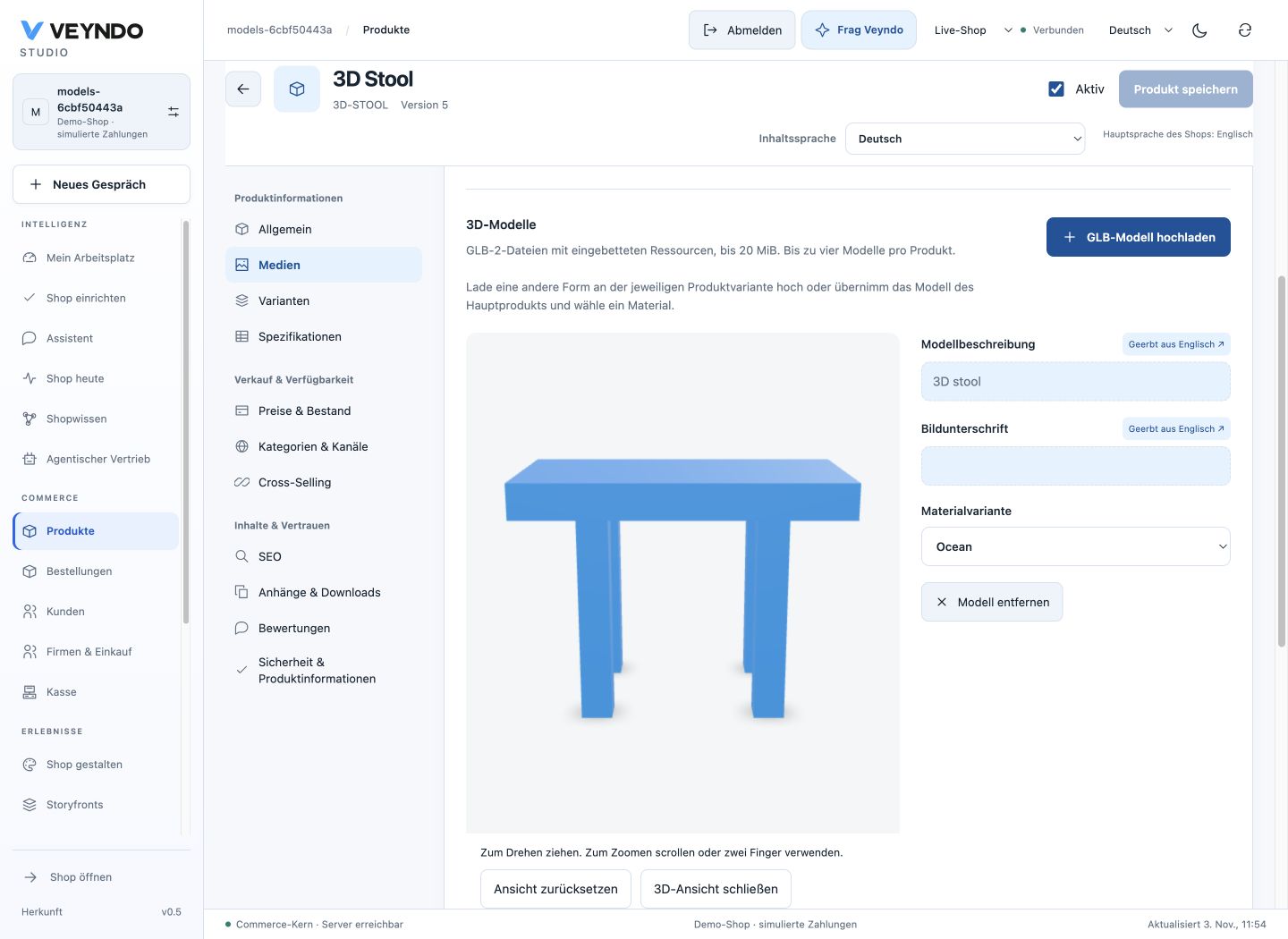
- Open Products → your product → Media and find 3D models.
- Choose Upload GLB model. Use a self-contained GLB 2 file up to 20 MiB. Geometry, textures and materials belong inside that file.
- Open View in 3D to rotate and zoom the actual model. Reset returns the camera to its initial framing. Failed loads offer a retry.
- Edit Model description and Caption in the selected content language. Missing translations inherit the configured shop main language.
- Save the product draft through its normal save action. The product revision, history, permissions and stock-safe content save remain authoritative.
The merchant preview uses authenticated GET /api/merchant/assets/{id} with
catalog.read. It can show an unfinished or inactive product without activating
it. Studio reads its bytes through the explicit authenticated browser transport
and gives the viewer a temporary blob URL, released when the preview closes or
changes. No credential is placed in a model URL. Upload and publishing use the existing asset endpoints and catalog.write.
The standard public asset route still requires published attachment bytes and
current product/channel admission.
Bind the right model to a variant
For a different shape, open the relevant product variant and upload its own GLB. For a different material, the same geometry can be reused:
- Upload a GLB containing
KHR_materials_variantsto the parent product. - Open the SKU and choose Use models from parent product.
- Open its 3D preview, then select an actual Material variant from that file.
- Save the SKU. For example, one SKU can select
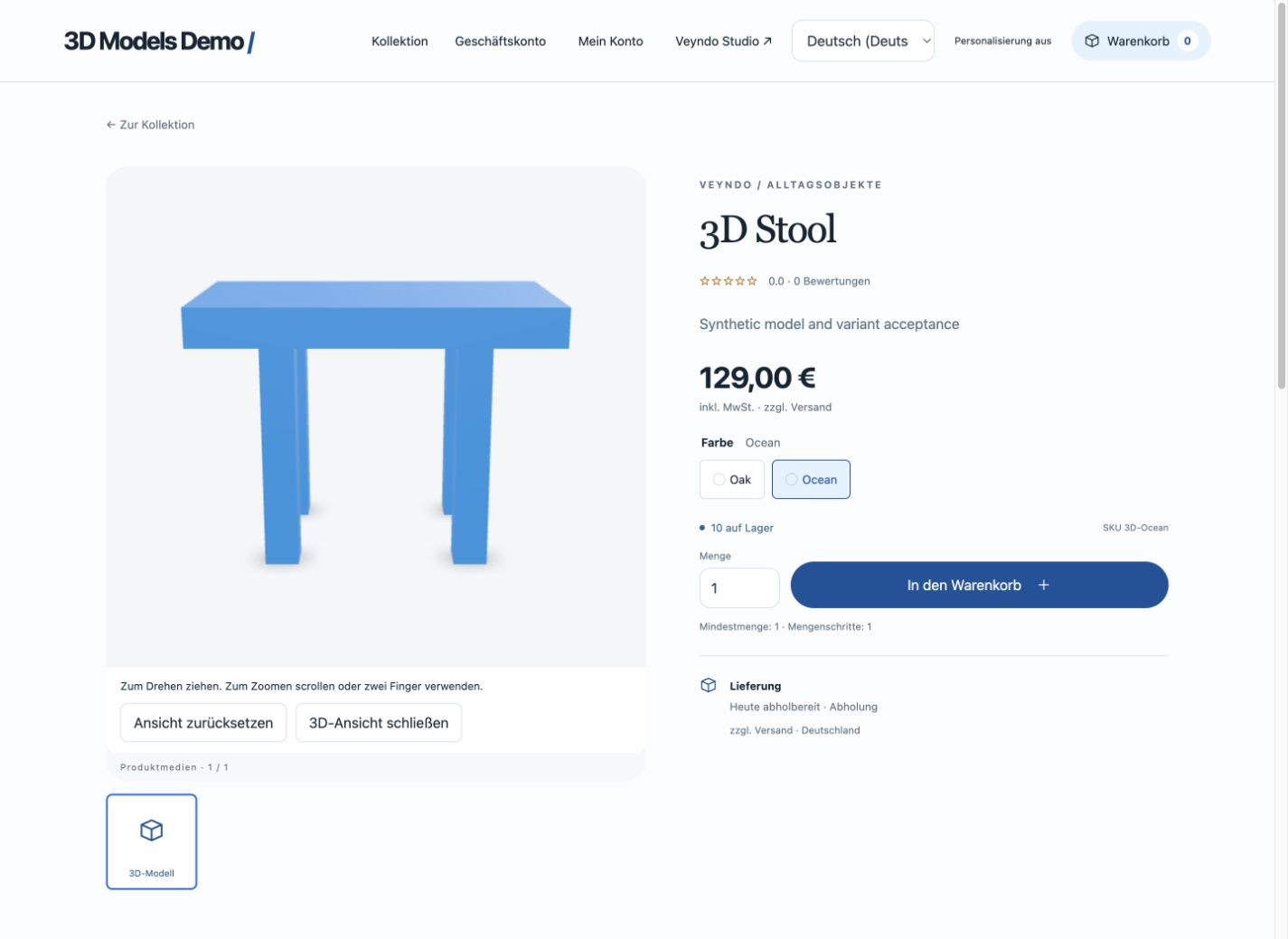
Oakand anotherOcean.
The saved binding identifies the exact native asset and material name. The server checks that the asset belongs to the product or its actual parent and that the material exists inside the GLB. It rejects cross-shop URLs, foreign assets and invented material names. Parent reuse is an explicit copy into the SKU's media assignment; changing the parent later does not silently rewrite every SKU.
Selecting another SKU in the storefront refreshes the authoritative product, price, stock and media. If the shopper is already viewing 3D, the next SKU opens its own model/material directly. Image thumbnails, product cards, POS, cart, order confirmation and account history continue using image assets rather than attempting to render a GLB as an image.
Try the public demo
Open the 3D Models Demo. Choose View in 3D, then switch between Oak and Ocean. The blue SKU uses a wider model; the open view follows the SKU without a second launch. These are original synthetic demonstration models.
Shared media contract
{
  "id": "owned-asset-id",
  "type": "model",
  "url": "/store-api/assets/owned-asset-id?shop=your-shop",
  "view": "Chair in oak",
  "modelVariant": "Oak",
  "alt": {"en": "Oak chair", "de": null},
  "caption": {"en": "Explore the chair from every side"}
}
Existing media without type remain images. Public product serialization resolves
translated descriptions/captions using the native language chain. Admin edits keep
the original nullable maps. The existing product update capability and outbox event
also cover model changes; there is no separate model catalogue or database table.
External frontends can consume the typed entries from the existing Store API.
The private Storyfront renderer needs to consume these typed entries to display
3D itself; this feature does not replace its editor or renderer.
Private design and selected publication
Sandbox clones retain immutable model bytes through existing product assets. Their URLs are rebound to the sandbox shop. Publish the changed product and its new asset together through the existing release selection. A product-only release fails if its required asset has not been published. Existing material assignments participate in product history and revision checks. Restore does not rewind stock.
Format, performance and security
- GLB 2, maximum 20 MiB per file, four models within the normal 20-item gallery. Other uploads retain their existing 8 MiB limit.
- Rust checks header/version, exact chunk lengths, JSON structure, buffer lengths, geometry bounds, resource references and material names. External resource URIs, Draco, meshopt and KTX2/Basis decoder extensions require conversion before upload.
- The bundled viewer is
@google/model-viewer4.4.0. Its engine is a separate lazy chunk, served by Veyndo. An unused meshopt decoder is excluded because native admission already rejects that format. No new CDN or CSP eval permission is added. - Mouse, touch and keyboard controls, localized instructions, retry, reset and responsive layout share the same component in Studio and the storefront.
- AR, USDZ, OBJ/FBX conversion and automatic generation of 3D geometry are separate features. Existing AI image generation remains an image workflow.
Verification
product_models is registered in the daily native HTTP suite. Its isolated shops
exercise real upload/download, inactive private preview, malformed/remote-resource
rejection, material and geometry SKUs, tenant/channel isolation, stale saves and
selected sandbox publication. Two Rust format tests and focused frontend tests
cover the parser, current rights, parent reuse and safe image-only consumers.
The original synthetic stool fixtures are authored locally in
scripts/testing/model_fixture.py; they contain no external resources.
On 3 November 2026, core commit ea1082a was deployed and publicly checked:
upload, authenticated preview, malformed files/material names, both SKU forms,
stale saves, channel admission and selected sandbox publication passed against
the live API. Chrome also passed the actual Studio upload/save and private
preview, then the public 3D view and SKU switch with no console errors. Desktop
and 390-pixel layout checks were performed locally; these are browser checks,
not a physical-device acceptance. Foreign-account negative controls passed in
the isolated native suite.